
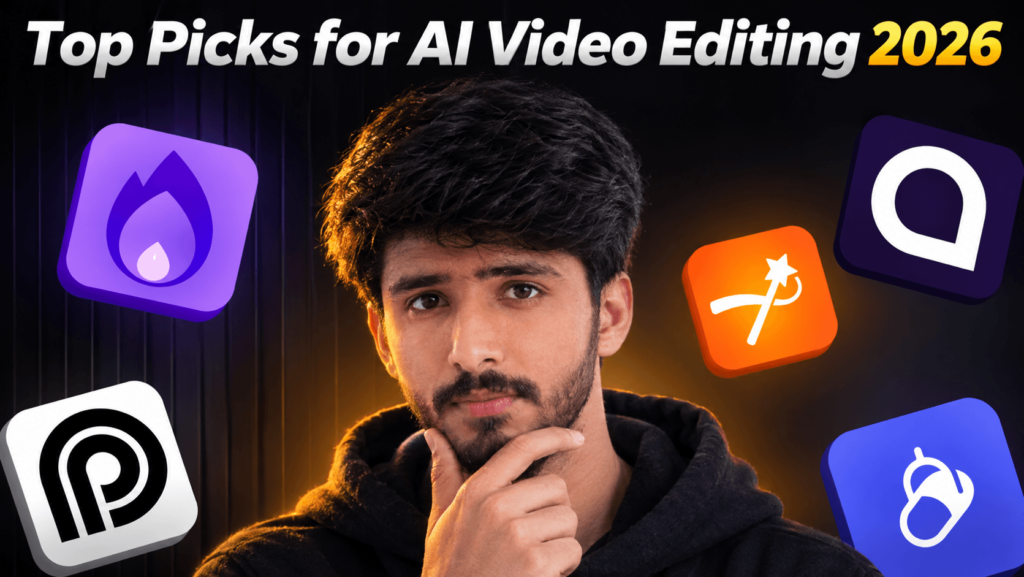
Best AI Video Editing Tools for YouTube Creators
Editing is the part of YouTube that most people quietly hate. Filming can be fun. Editing is where a 10-minute video turns into a 6-hour job.
AI editing tools can take a big chunk of that work away. They can cut out silences, add captions, clean up your audio, and turn one long video into a few Shorts. But they’re not magic, and some of them are better suited to certain creators than others.
Here are the tools I’d look at first, and who each one really suits.
Quick picks:
Best for beginners and Shorts: CapCut
Best for talking-head and tutorial videos: Descript
Best free full editor: DaVinci Resolve
Best if you already use Adobe: Premiere Pro
Best for turning long videos into Shorts: Opus Clip
Best for quick edits in your browser: VEED
1. CapCut
CapCut is where most new creators start, and for good reason. It’s easy to learn, it works on phone and computer, and it has a lot of AI features built in. Auto captions, background removal, and ready-made templates are the ones I’d use most.
Good for: Shorts, Reels, TikTok, and simple long videos.
Watch out for: Some of the best features are behind the paid plan. If you make a lot of long, complicated videos, you may outgrow it.

2. Descript
Descript works differently from other editors. It turns your video into a written transcript, and you edit the video by editing the text. Delete a sentence from the text and it disappears from the video. It can also remove filler words like “um” and “uh” and clean up your audio.
If you talk to the camera, record tutorials, or do commentary, this can save you hours.
Good for: Talking-head videos, tutorials, podcasts, screen recordings.
Watch out for: It’s not the tool for heavy effects or fast-cut styles. It also takes a little time to get used to editing by text.
3. DaVinci Resolve
Resolve is a professional editor, and the free version is far better than you’d expect. It’s especially known for color grading. It also has AI tools, though some of them are only in the paid Studio version.
Good for: Creators who want pro-level results without paying every month.
Watch out for: It has a steeper learning curve, and it likes a decent computer. On a weak laptop it can be slow.

4. Adobe Premiere Pro
Premiere Pro is the standard for a lot of full-time YouTubers. It has auto captions, text-based editing, and audio cleanup tools, and it works smoothly with the rest of Adobe’s apps.
Good for: Creators who already pay for Adobe, or who want an editor they won’t outgrow.
Watch out for: It’s a monthly subscription, and it’s more than a beginner needs.
5. Opus Clip
Opus Clip does one job: you give it a long video, and it finds moments that could work as Shorts. It adds captions and reformats the clips for vertical video.
Good for: Podcasts, interviews, long commentary videos, and live streams.
Watch out for: The AI doesn’t always pick the best moment. Always watch the clips before posting them. Think of it as a first draft, not the finished product.
6. VEED
VEED runs in your browser, so there’s nothing to install. It can add subtitles, remove silences, and do basic edits quickly.
Good for: Fast edits, subtitles, and creators on a slower computer.
Watch out for: The free plan has limits, so check what you get before you rely on it.

How to choose
Don’t pick the tool with the longest feature list. Pick the one that fixes your biggest problem.
If you’re just starting, try CapCut.
If you talk to the camera a lot, try Descript.
If you want to grow into serious editing for free, learn DaVinci Resolve.
If you have a lot of long videos to repurpose, add Opus Clip.
Most tools have a free plan or a free trial, so test two of them on the same video and see which one feels easier.
One last thing
AI can save you time, but it can’t make a boring video interesting. A strong idea, a good hook, and clear audio matter more than any tool on this list. Use AI for the boring work, and spend the time you save on making the video itself better.
Abdul Rehman Bangulzai